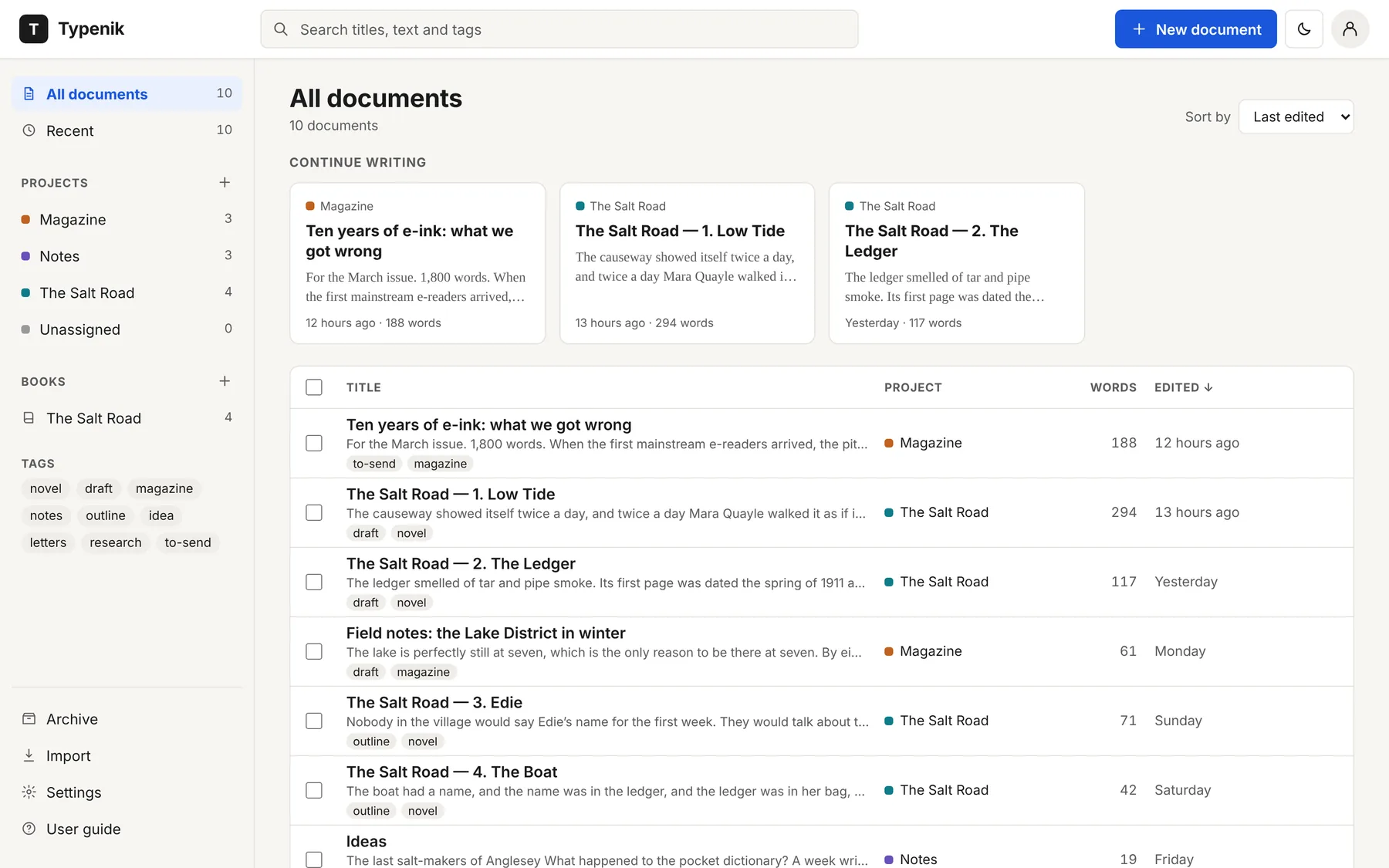
Long work
Made for writing that runs to chapters.
A novel, a thesis, a collection of essays: Typenik keeps each part in its own document, lets you work on them as one continuous text, and gives you the tools to see and change the shape of the whole.
Books
Chapters on their own. A book when you need one.
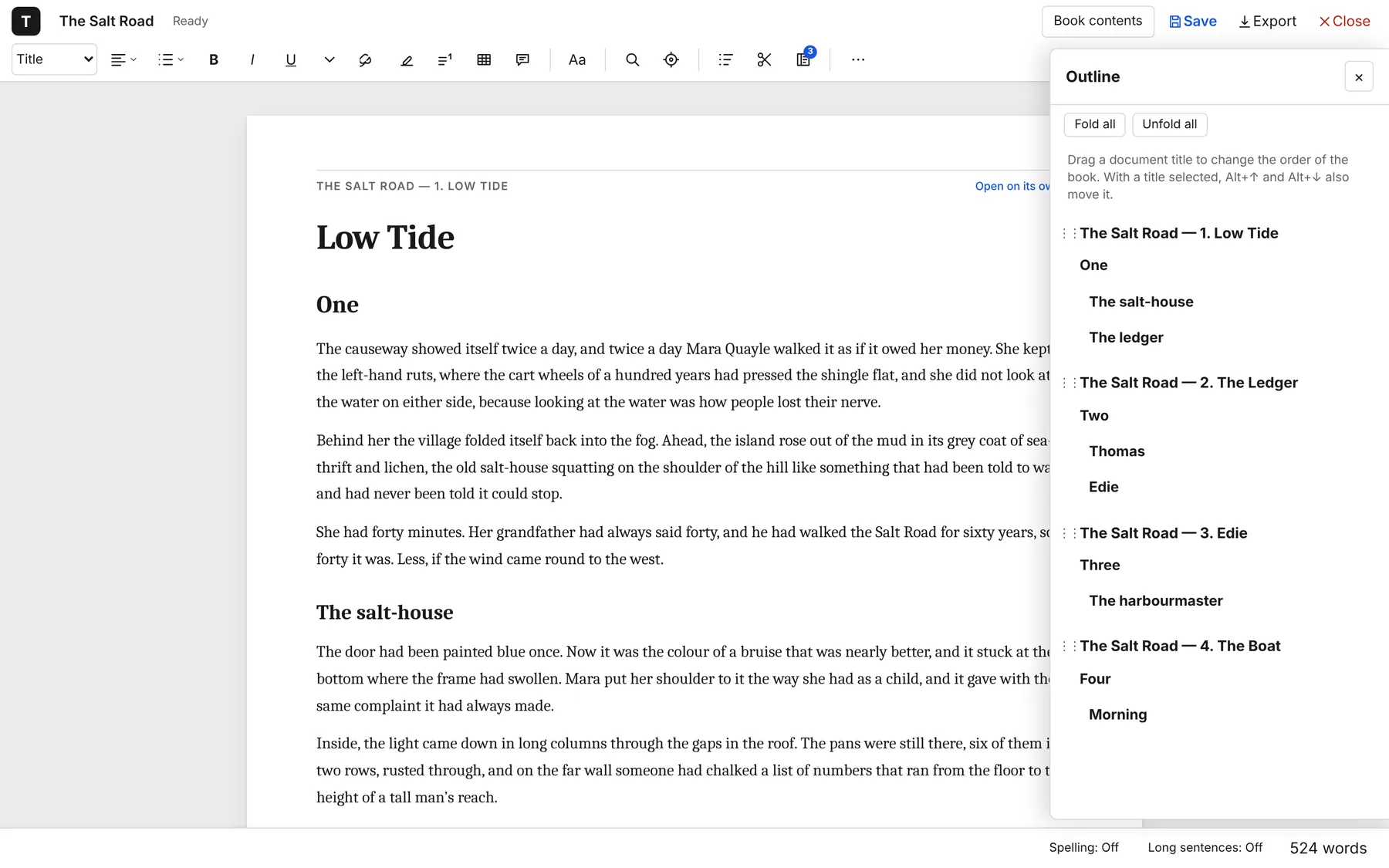
Tick some documents and click Make book. Open the book and every chapter runs on after the last, with a thin line where each begins. Write straight through; when you pause, Typenik saves only the chapters you actually changed, however long the book is.
- Each chapter stays an ordinary document you can open, share or export on its own
- Chapters are protected from each other: no accidental joins across the line
- Export the whole book as one Word, OpenDocument, web page, Markdown or text file
- One layout for the whole book, saved with it

Outlining
See the shape. Then change it.
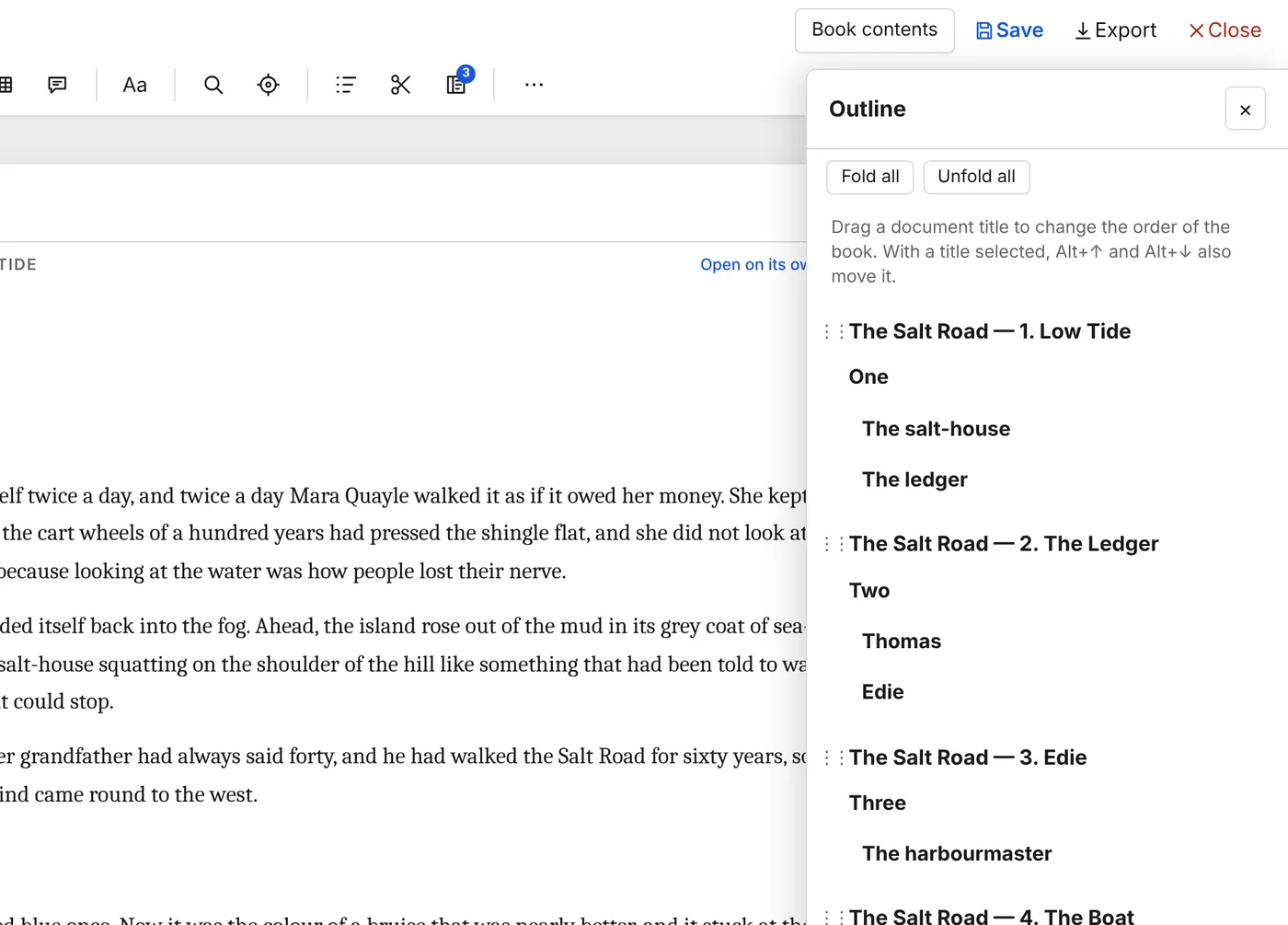
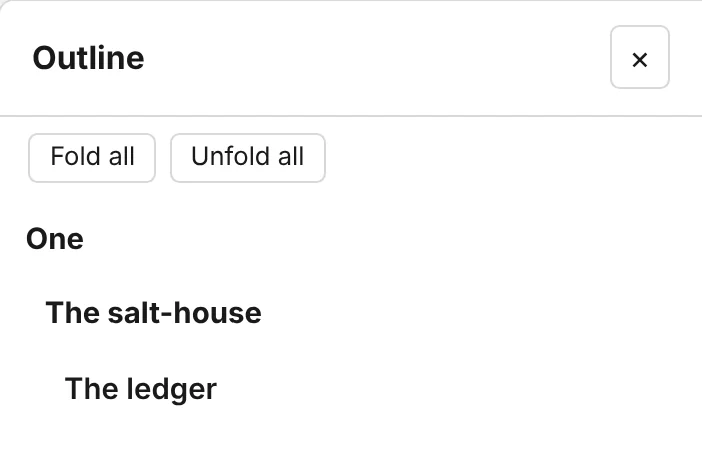
The outline is made from your headings as you write. Fold a section away to see the bones of the piece, then move whole sections – headings, paragraphs and all – without cutting and pasting.
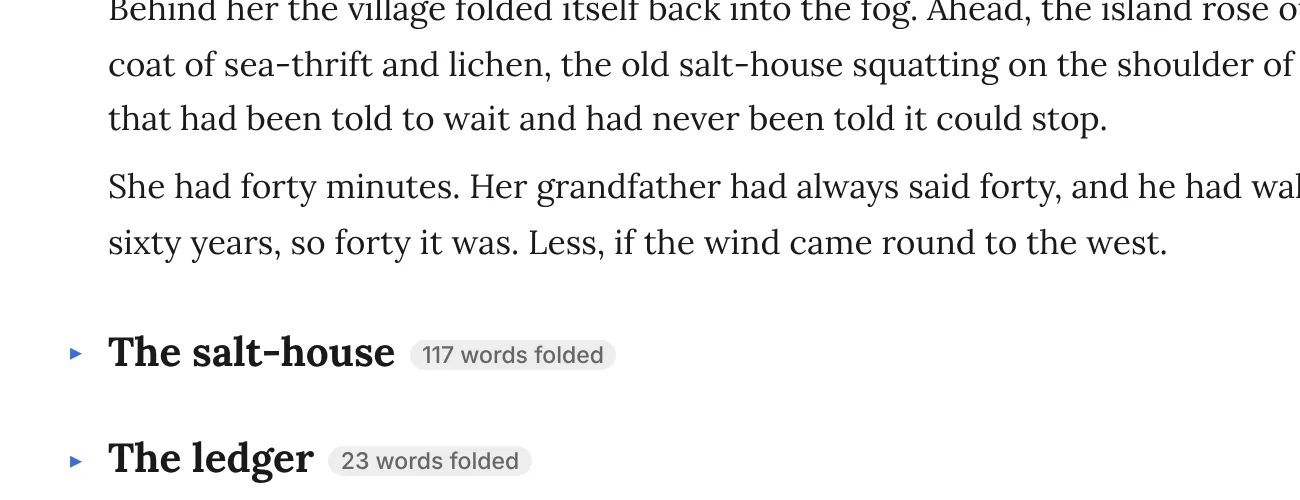
Fold
Fold the section or list item you’re in, or fold everything down to its headings with Alt+Shift+A. Folded text is protected from stray keystrokes.
Move
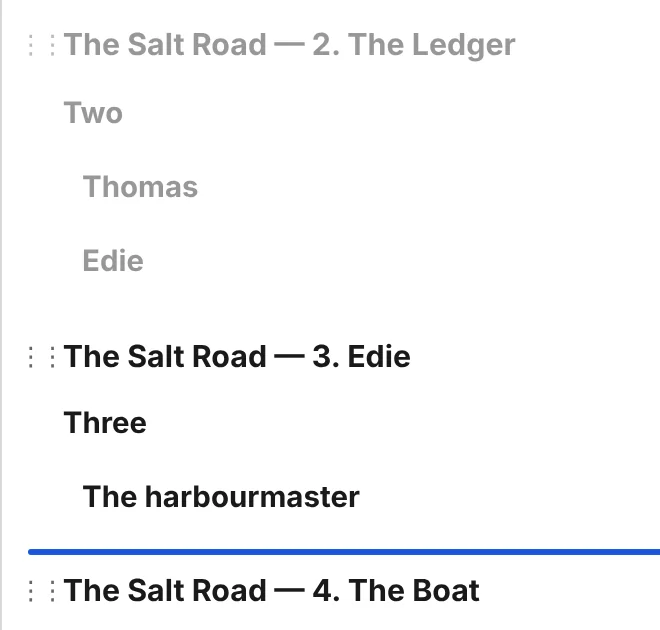
Move a section, list item or paragraph up or down with Alt+Shift+↑ and ↓ – or drag its heading in the outline panel.
Promote and demote
Turn a Heading 2 into a Heading 1 with Alt+Shift+←, and every subheading beneath it follows.
On a Mac, use Ctrl in place of Alt. Changed your mind? Ctrl+Z undoes any move.
Cuttings
Cut boldly. Nothing is thrown away.
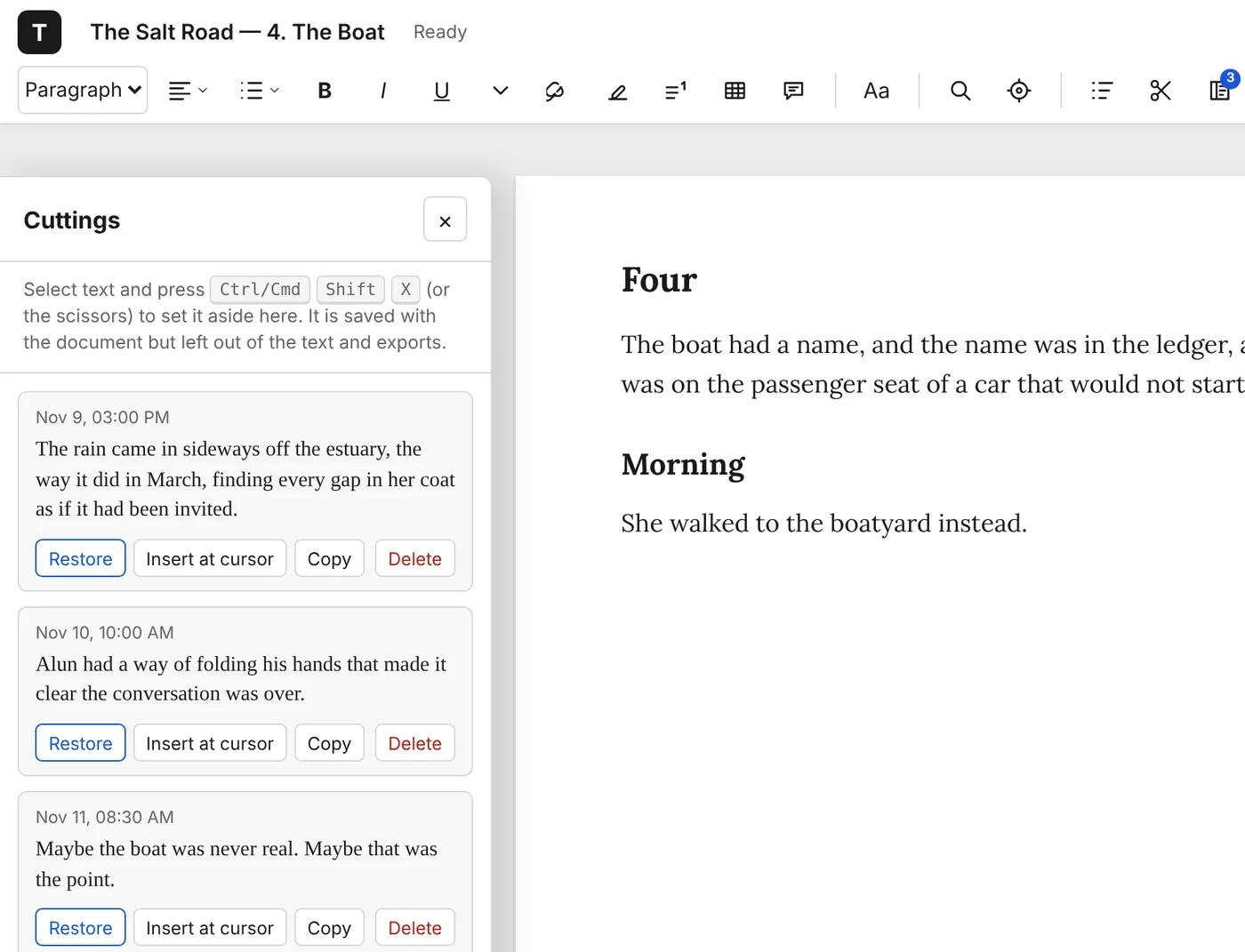
Select a passage and press Ctrl+Shift+X. It leaves the page and goes to the Cuttings sidebar, stamped with the date, and stays there – inside the document’s own file – for as long as you like.
Change your mind and click Restore: Typenik remembers the words either side of the cutting and puts it back between them, even after weeks of other edits. Or insert it somewhere new, at the cursor.
Your documents
Everything in its place.
The documents page puts what you were writing most recently at the top, and sorts the rest into colour-coded projects, books and tags in the sidebar. Search finds words in titles, tags and the text itself.
- Select several documents to tag, move, archive, export or make into a book
- Archive what you’ve finished, without deleting it
- Import Word, OpenDocument, Markdown, web pages and text