Word & LibreOffice
Your editor uses Word. That’s fine.
Typenik sends your work out as proper Word and OpenDocument files – comments, replies, footnotes, tables, fonts and all – and brings it back in with your editor’s notes and changes ready to review. Nobody has to change how they work.
Comments
Ask, answer, resolve.
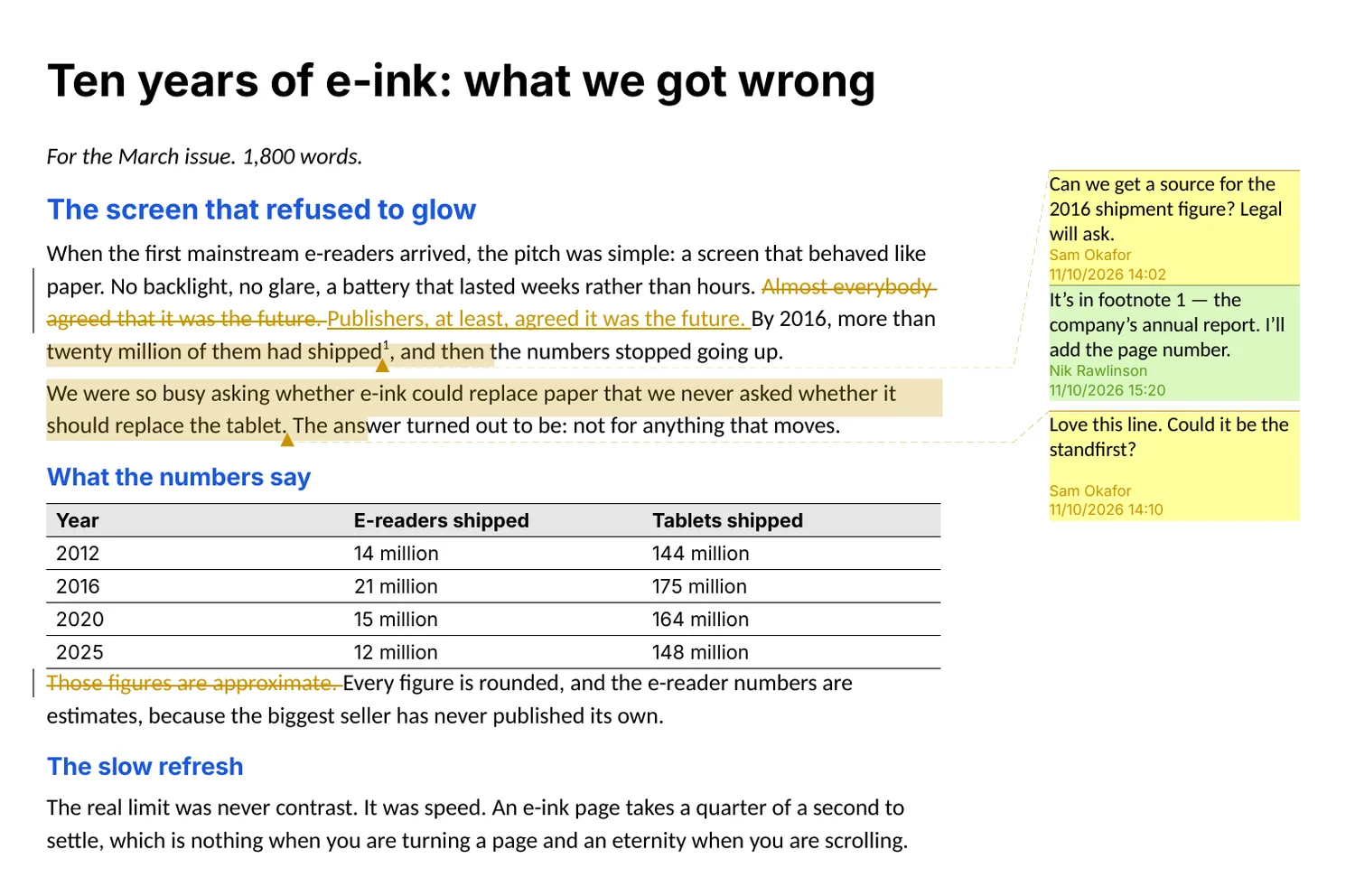
Select some words and press Ctrl+Alt+M to comment on them. Comments sit in a panel beside the text, never in it, so they don’t touch your word count. Reply under any comment, resolve it when it’s dealt with, and hide the resolved ones.
Export to Word or OpenDocument and they become real comments, with their replies and whether they’re resolved. When the file comes back, import it and your editor’s answers are waiting.
Tracked changes
Their changes, your decision.
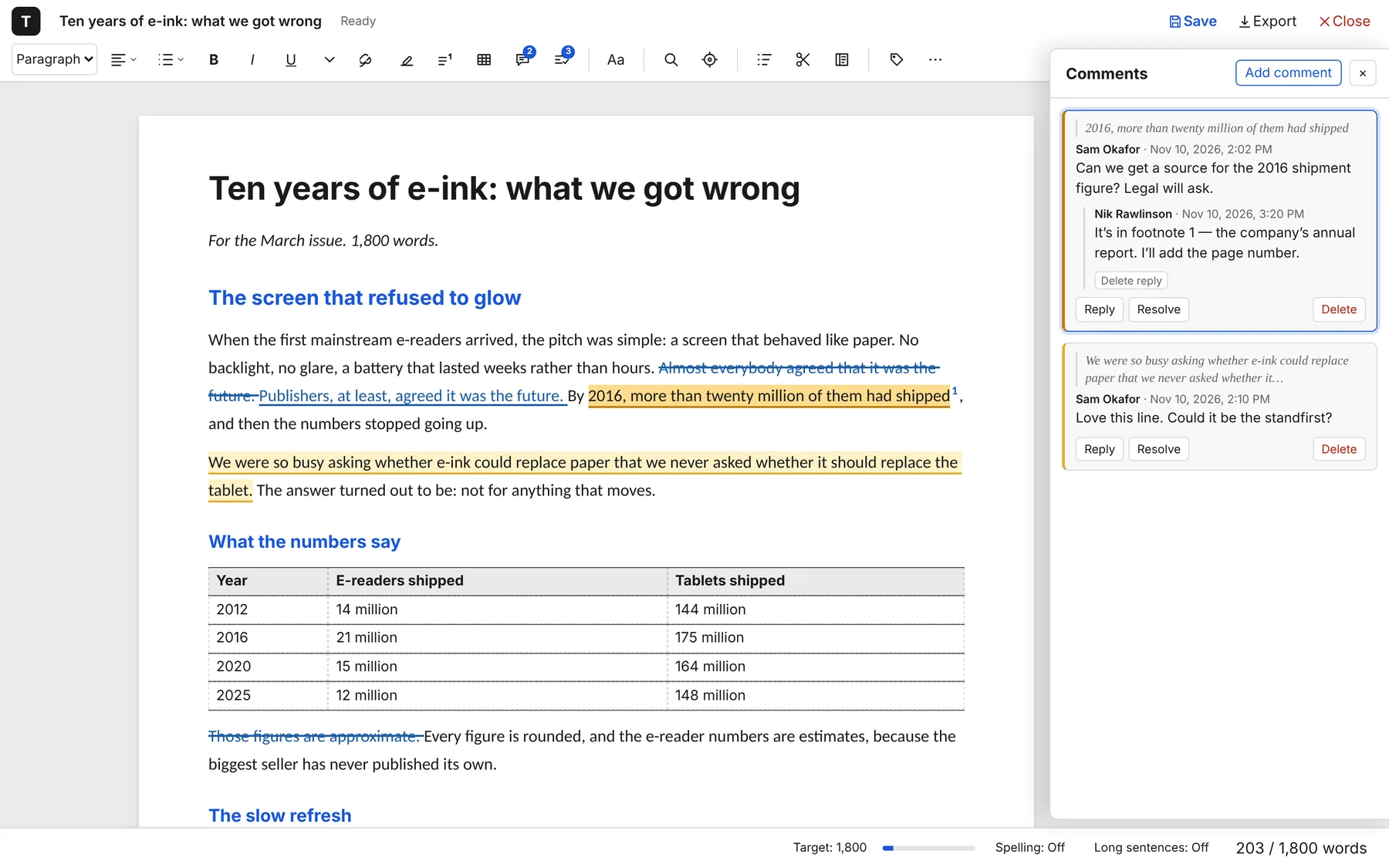
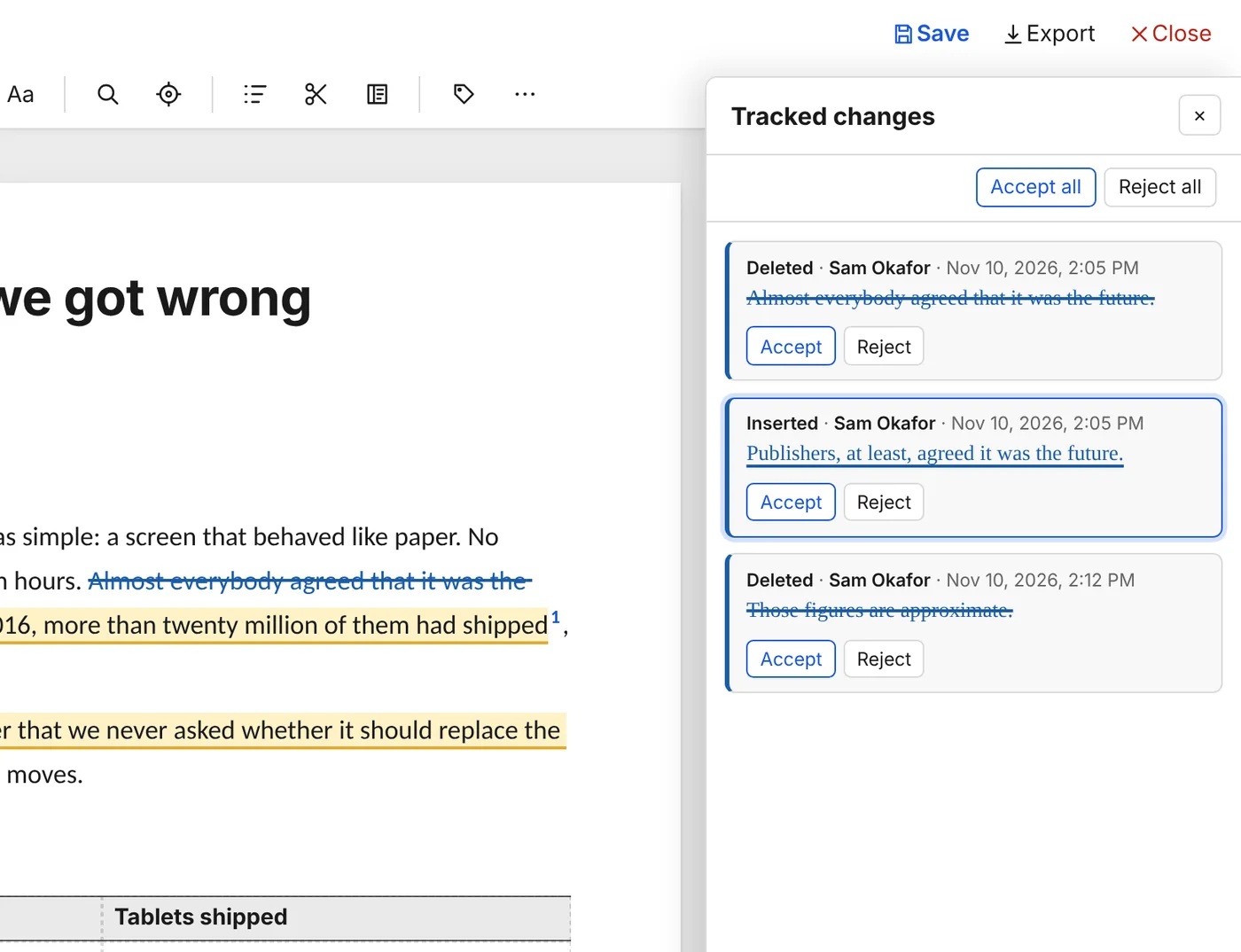
Import a Word or OpenDocument file in which an editor tracked their changes, and the changes come in to be reviewed, not quietly made. Insertions are underlined and deletions struck through, in a colour for each person.
- Accept or reject one change at a time, from the list or in the text
- Accept all or reject all – or just one person’s
- Undecided changes go back out as tracked changes when you export
Typenik doesn’t track your own edits: version history keeps your earlier drafts instead.
What travels
Out and back again, intact.
This is what survives a round trip through Word or LibreOffice. When an imported file has something Typenik can’t keep, such as a picture or a text box, it tells you, so nothing goes missing without your knowing.
| Feature | Out to Word & OpenDocument | Back in from them |
|---|---|---|
| Title, headings, quotes, code | As named styles | Every heading level |
| Bold, italic, underline, strikethrough, super- and subscript, highlights | Yes | Yes |
| Lists within lists | With real bullets and numbers | Yes |
| Alignment and indents | Yes | Yes |
| Links | Clickable | Yes |
| Footnotes | Real footnotes | Footnotes and endnotes |
| Tables | With header row and lines | Yes, with the nearest line style |
| Comments and replies | Real comments, resolved or not | Yes |
| Tracked changes | Those not yet decided | For you to review |
| Fonts | Embedded in the file | – |
| Page breaks and paper size | Yes, from your export settings | – |
Every format
Six ways out. Six ways in.
Export any document from the editor or the documents page and choose its format, or press Ctrl+E to export straight away in your default. Select several documents to export them all at once, in a ZIP.
Import works the same way in reverse: choose a Word, OpenDocument, Markdown, web page, text or Typenik file, and it becomes a new document.
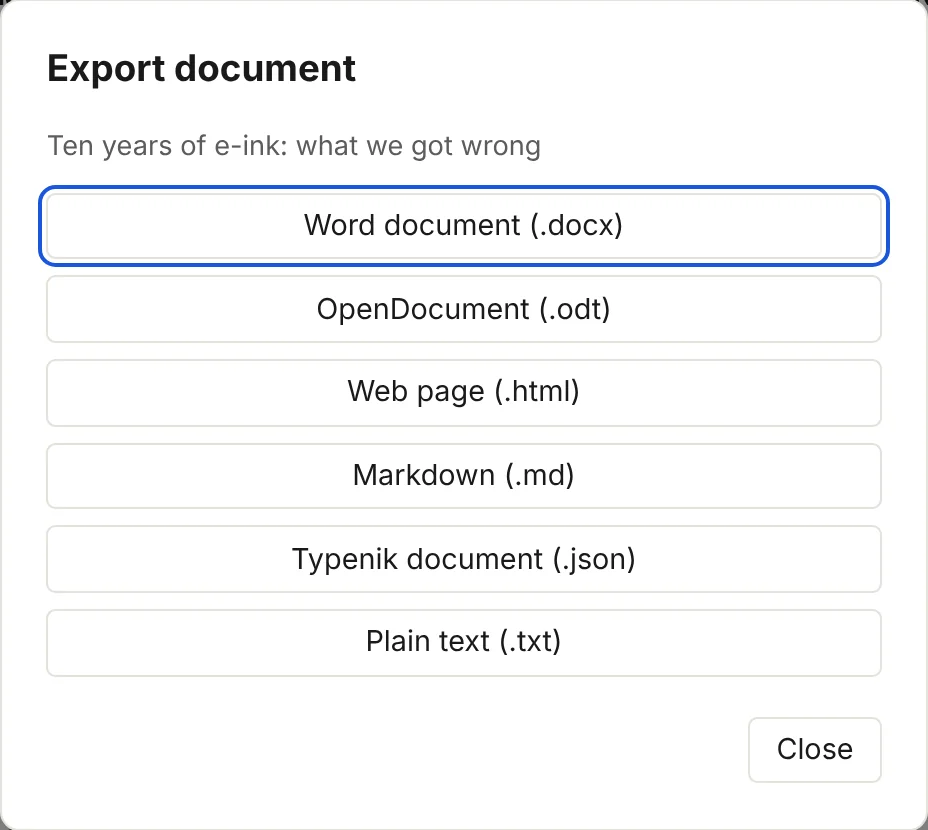
Word
For Microsoft Word, Google Docs, Pages and most other word processors.
OpenDocument
For LibreOffice and OpenOffice – and Word opens it too.
Markdown
For static site generators, note-taking apps and publishing tools. Tables become pipe tables.
Web page
A single, self-contained page that opens in any browser.
Plain text
Just the words, with list bullets and numbers kept and quotes indented.
Typenik document
Exactly as stored on your server, to keep or to move to another installation.
Books export as one file, chapters in order.
Sharing
A link for readers who don’t need a file.
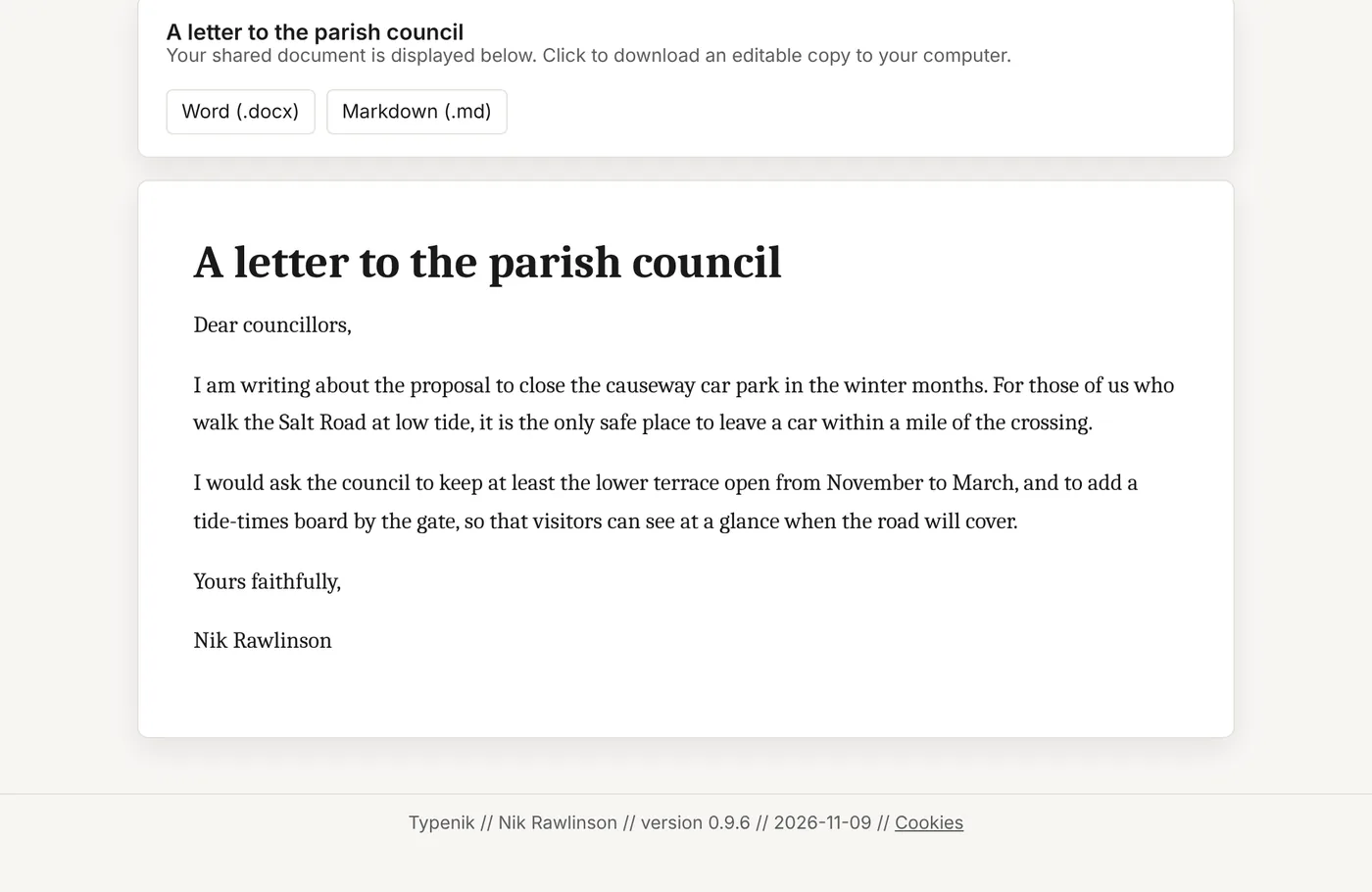
Make a share link for any document and send it to anyone. They see your text, cleanly laid out, with download buttons for only the formats you allow – or none at all.
- Links expire after a day, a week, two weeks, four weeks or on a date you choose
- Always up to date: readers see your latest saved version
- Private notes stay private: comments and highlights are removed, tracked changes shown as accepted, cuttings never shared
- No cookies are set for the people reading