Writing
A word processor that knows when to be quiet.
Typenik has the styles, footnotes and tables you’d expect from a word processor. It just doesn’t make a fuss about them. Open a document and you see a page, your words and a slim toolbar you can hide.
Comfort
Focus when you need it. Dark when it’s late.
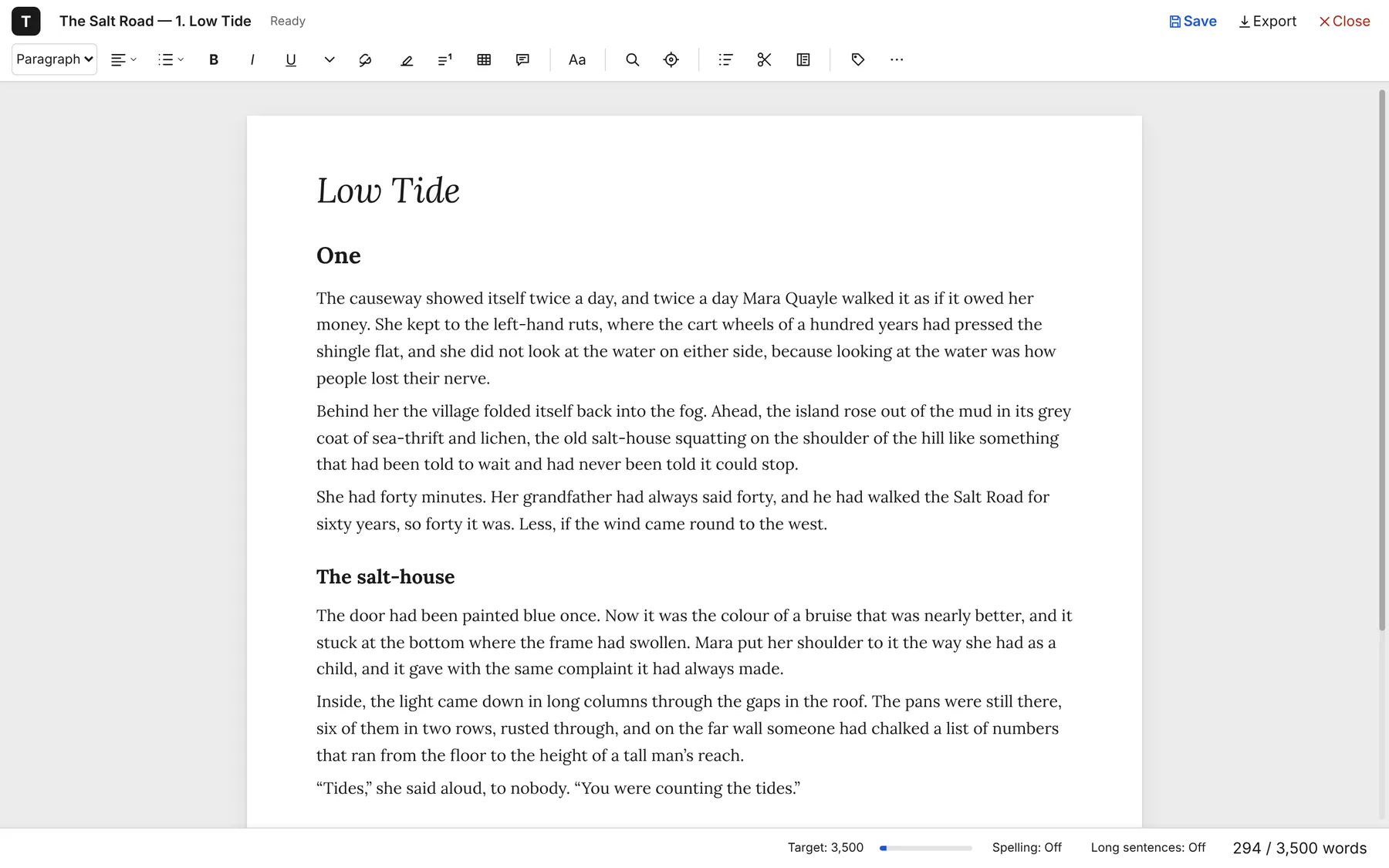
Focus mode hides the toolbars and the status line, leaving only your text, and keeps the line you’re writing at eye level instead of letting it creep down the screen. Move the pointer to the edge and the tools come back; press Esc to leave.
- Dim other paragraphs to see one thought at a time
- Light and dark themes, remembered in each browser
- Full screen and zoom for long sessions
Formatting
All the structure, none of the clutter.
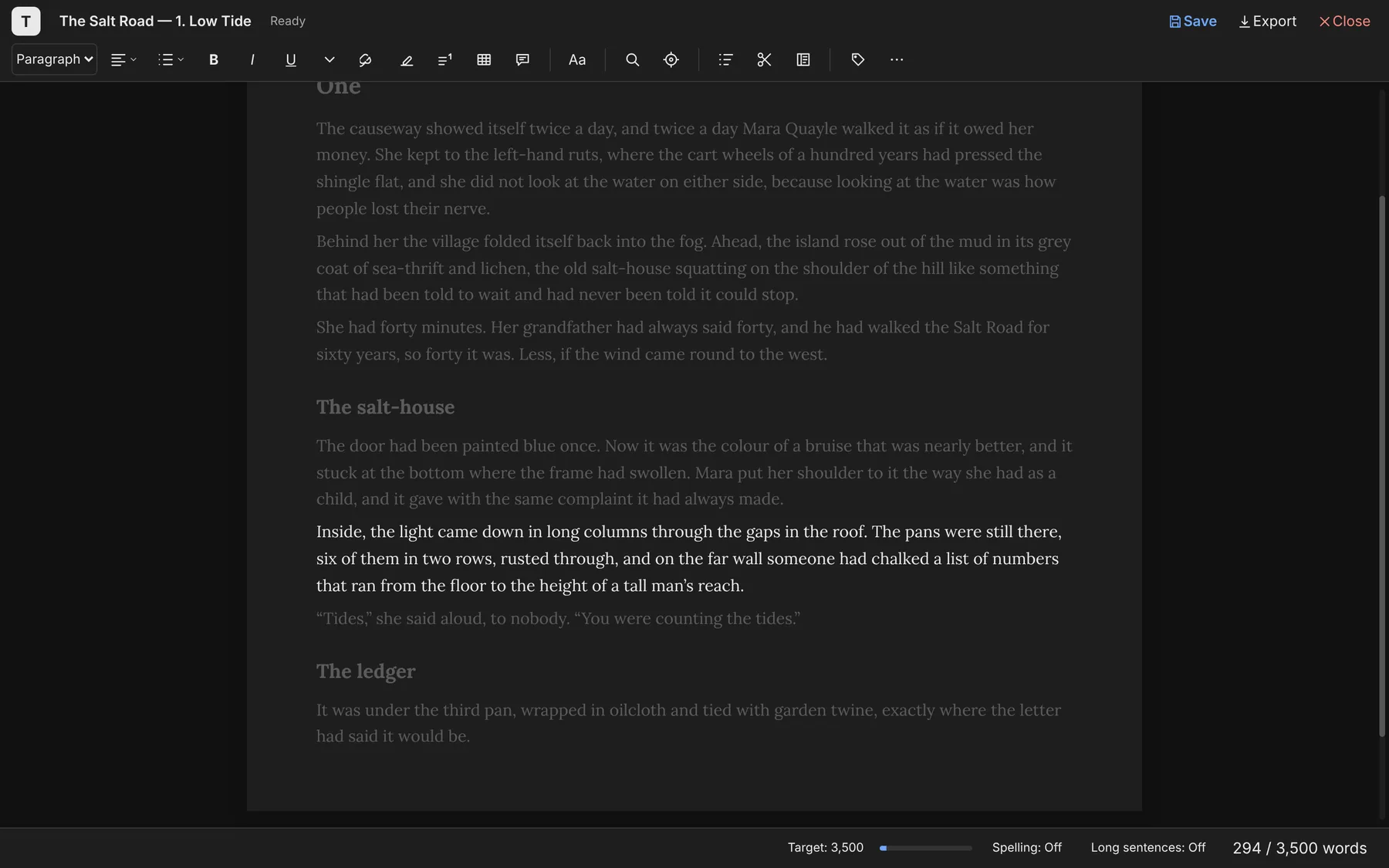
Everything that gives a piece its shape is here, and all of it survives the trip to Word, LibreOffice, Markdown and the web.
Paragraph styles
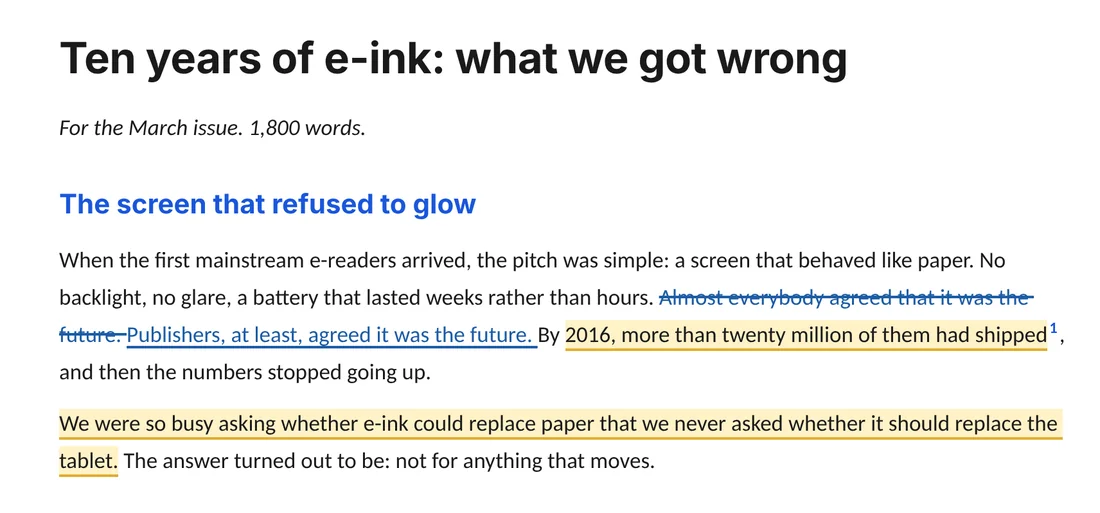
Title, five levels of heading, Quote and Code – which keeps every space exactly as you typed it. Each looks the way the document’s layout says.
Character styles and breaks
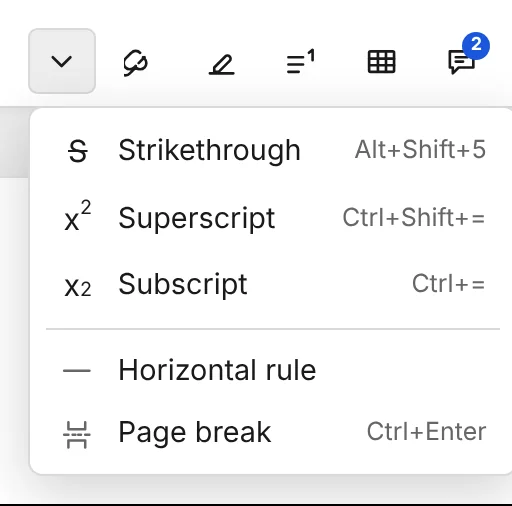
Bold, italic and underline on the toolbar; strikethrough, superscript, subscript, rules and page breaks a click or a shortcut away.
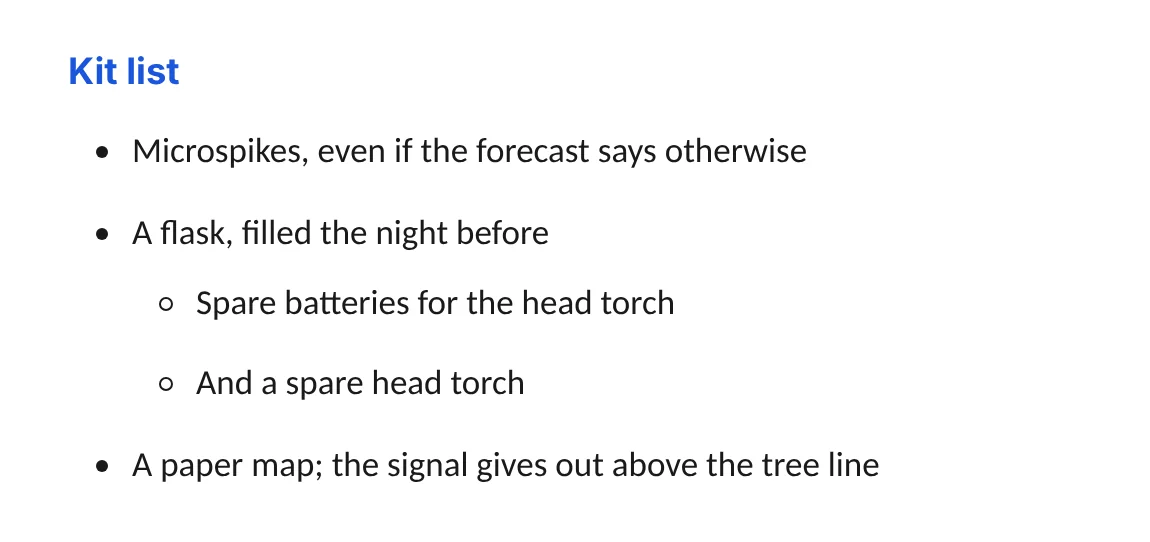
Lists nine levels deep
Bulleted and numbered. Tab indents an item and Shift+Tab brings it back, and Word gets real bullets and numbers.
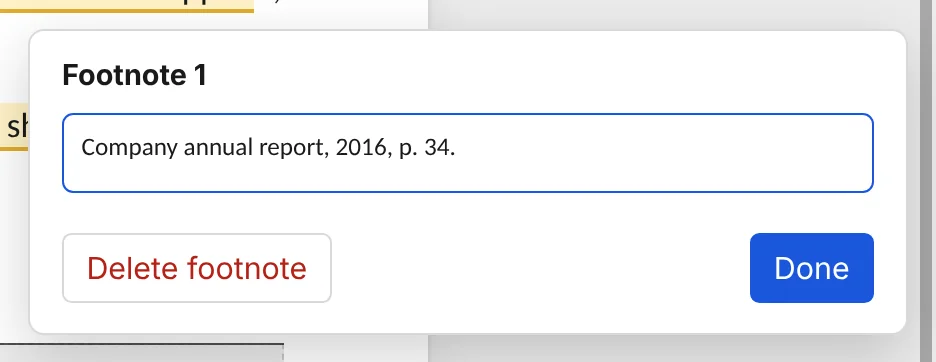
Footnotes
Numbered for you and kept with their text when you move it. Click a number to edit its note; exports get real footnotes.
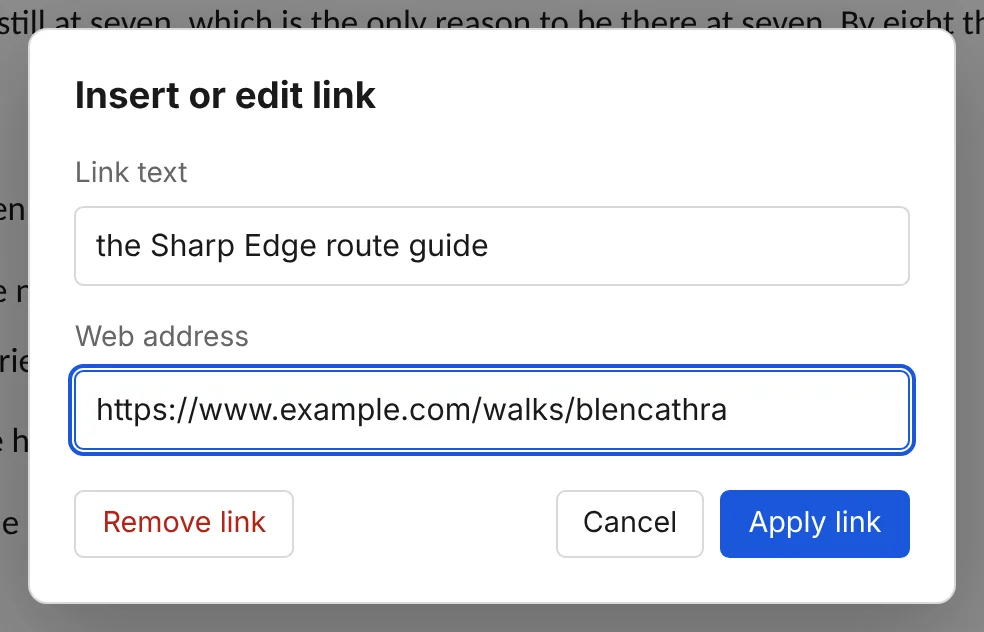
Links
Add one from the toolbar, or type it the Markdown way. Kept when you save, export and paste, and clickable in every format that allows it.
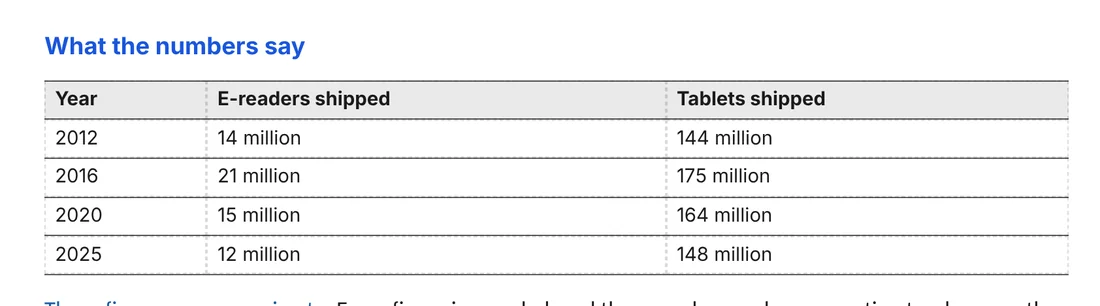
Tables
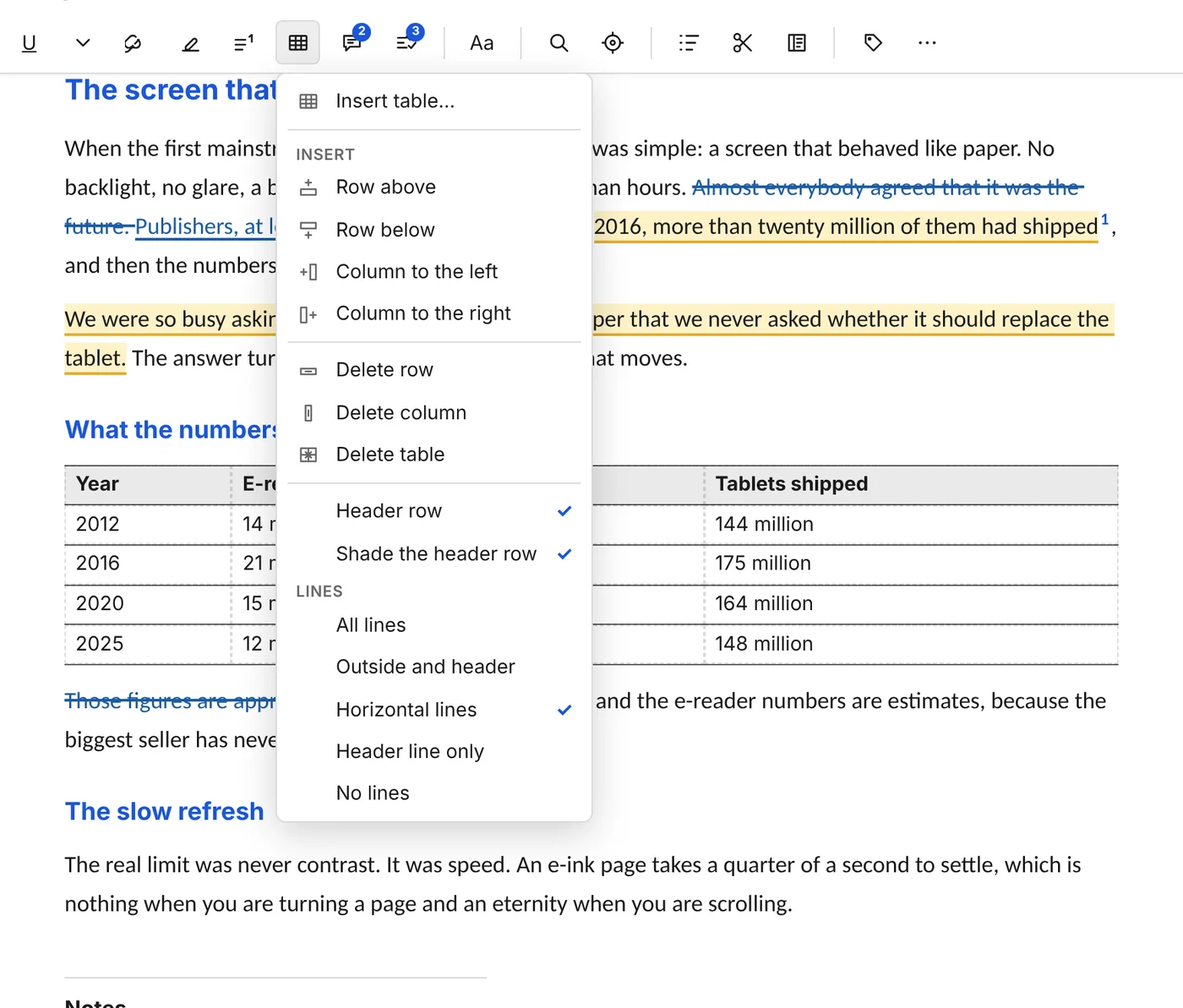
With a header row, optional shading and five styles of lines, set in their own font and size.
Alignment and indents
Left, centred, right and justified, with tabs and indented paragraphs.
Page breaks
Press Ctrl+Enter, or start every chapter on a new page when you export.
Clean pasting
Paste from a web page or another program and keep the structure – but not its fonts and colours.
Tables that behave.
Insert a table, then use the Table menu to add or remove rows and columns, turn the header row on or off, shade it, and choose from five styles of lines: all lines, outside and header, horizontal lines, header line only, or none. Tab moves from cell to cell and adds a row at the end.
Tables go to Word and OpenDocument as real tables, and come back from them – and from Markdown and web pages – the same way.
Typing shortcuts
Format without lifting your hands.
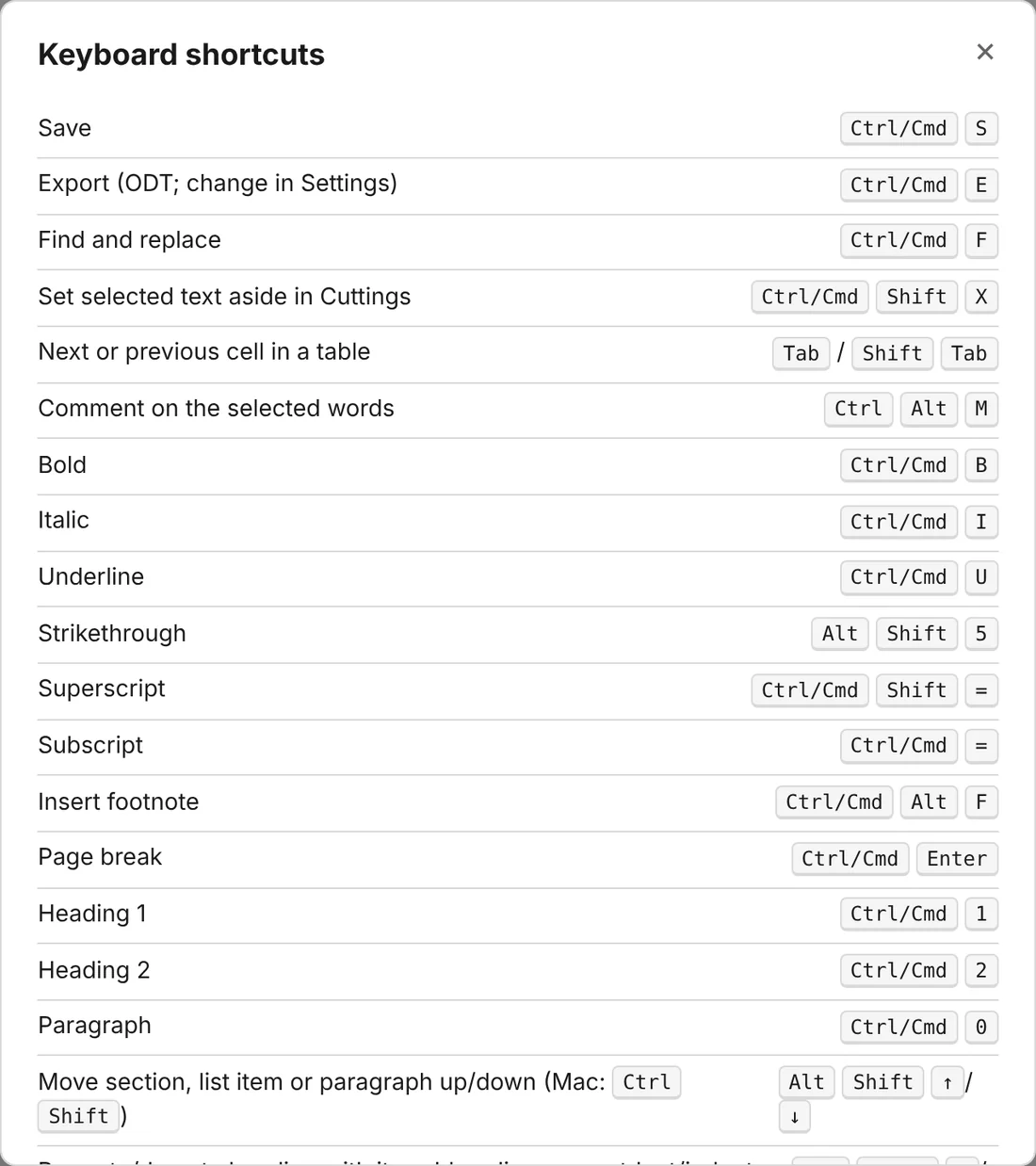
Typenik understands a little Markdown as you type, and quietly fixes the typography you’d otherwise fix later. Press ? at any time to see every shortcut.
| Type | And you get |
|---|---|
| # Space … ##### Space | Headings 1 to 5 |
| - Space or 1. Space | A bulleted or numbered list |
| **words** and *words* | Bold and italic |
| [text](https://…) | A link |
| -- and --- | An en dash – and an em dash — |
| ... | An ellipsis … |
| " and ' | Curly quotes, opening or closing as needed |
| Ctrl+F · Ctrl+E · ? | Find, export, and every shortcut |
Layout and fonts
Looks the same on your screen and in their Word.
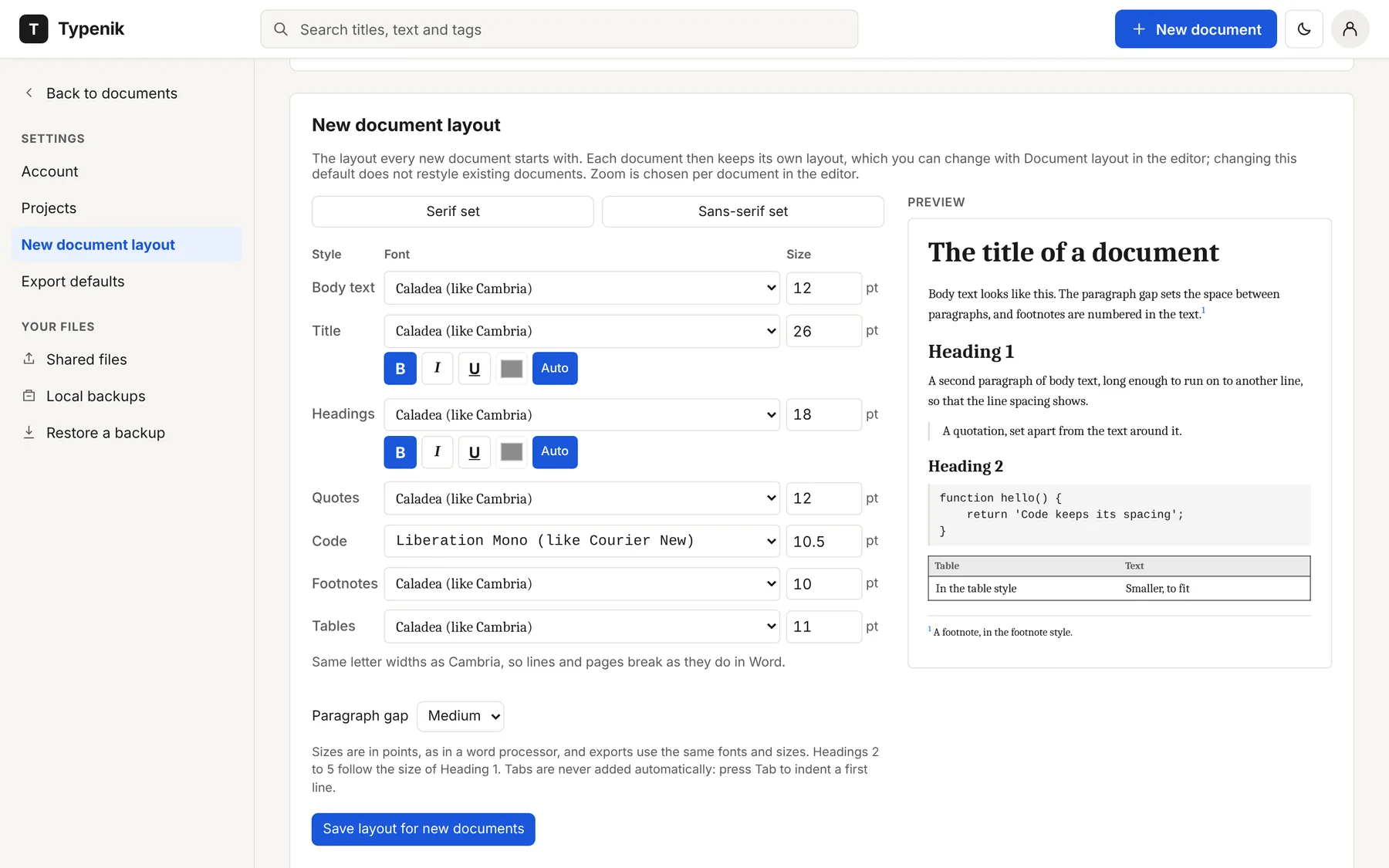
Every document keeps its own layout: a font and size for body text, the title, headings, quotes, code, footnotes and tables, plus the space between paragraphs. Set it once for all new documents, or change it for one piece.
Typenik comes with seven fonts, and several share their letter widths with fonts from Microsoft Office, so lines and pages break where they would in Word. Exports carry the fonts inside the file.
| Font | Kind | Same letter widths as |
|---|---|---|
| Caladea | Serif · the default | Cambria |
| Liberation Serif | Serif | Times New Roman – the usual manuscript font |
| Lora | Serif · a warm book face | – |
| Carlito | Sans-serif · the default | Calibri, Word’s usual font |
| Liberation Sans | Sans-serif | Arial and Helvetica |
| Inter | Sans-serif · made for screens | – |
| Liberation Mono | Monospaced · for code | Courier New |
Keeping count
Helpful, never naggy.
Targets
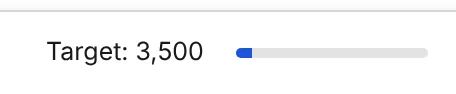
Give a document a word-count target and watch the bar fill in the status line.
Statistics
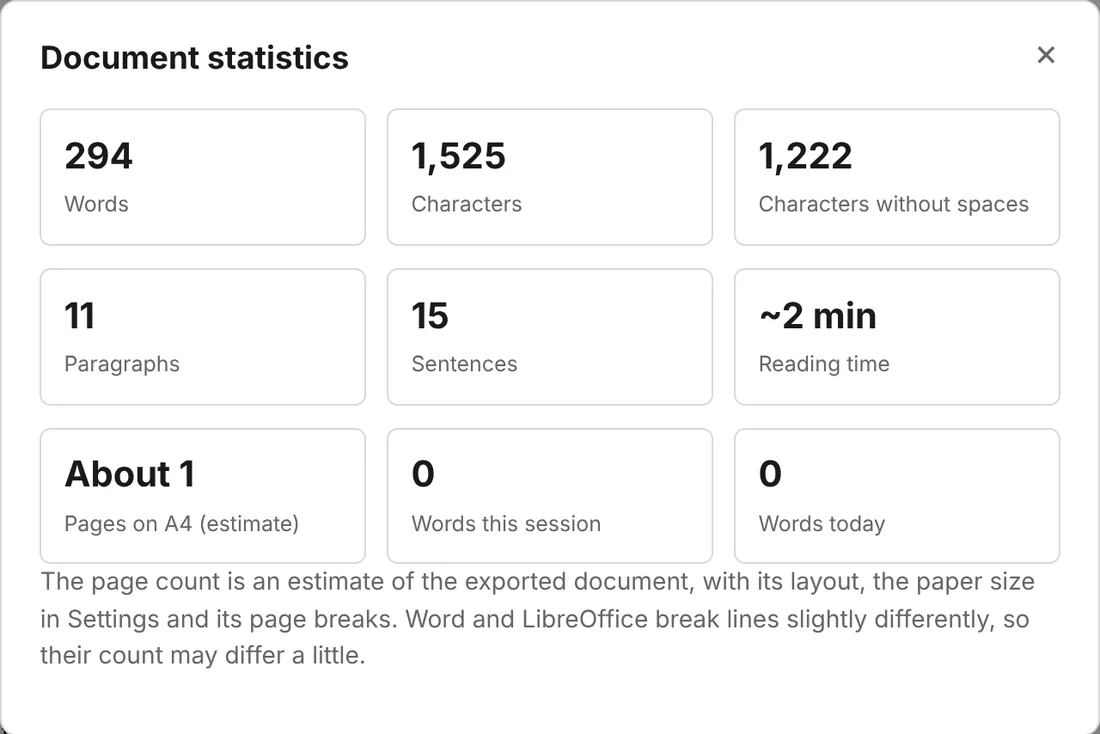
Words, characters, paragraphs, sentences and reading time, words this session and today, and about how many pages it will fill once exported.

Long sentences
Switch it on and sentences of 35 words or more get a dotted violet underline; at 50, a solid one. Never saved, never exported.

Spelling, when you ask
Off by default, so your first draft isn’t covered in red. One click on the status line turns your browser’s own checker on.
Find and replace
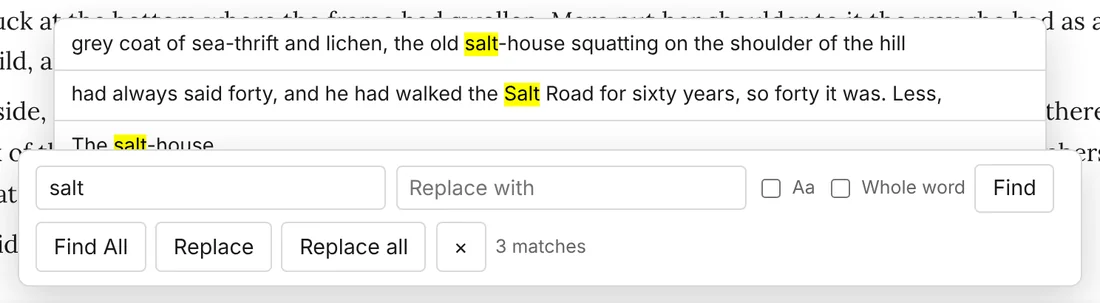
Find the next match, list them all with the words around them, then replace one or replace all.
Tags
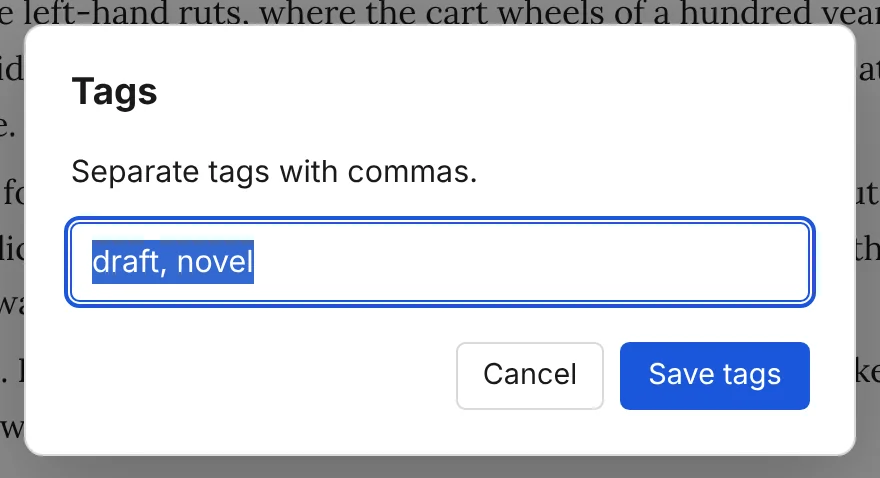
Label documents ‘draft’, ‘research’ or ‘submitted’ from the toolbar, and find them again from the documents page.